Chat Panel
The chat panel is the main interface for interacting with Claude. It docks inside the Unreal Engine editor like any other tab.
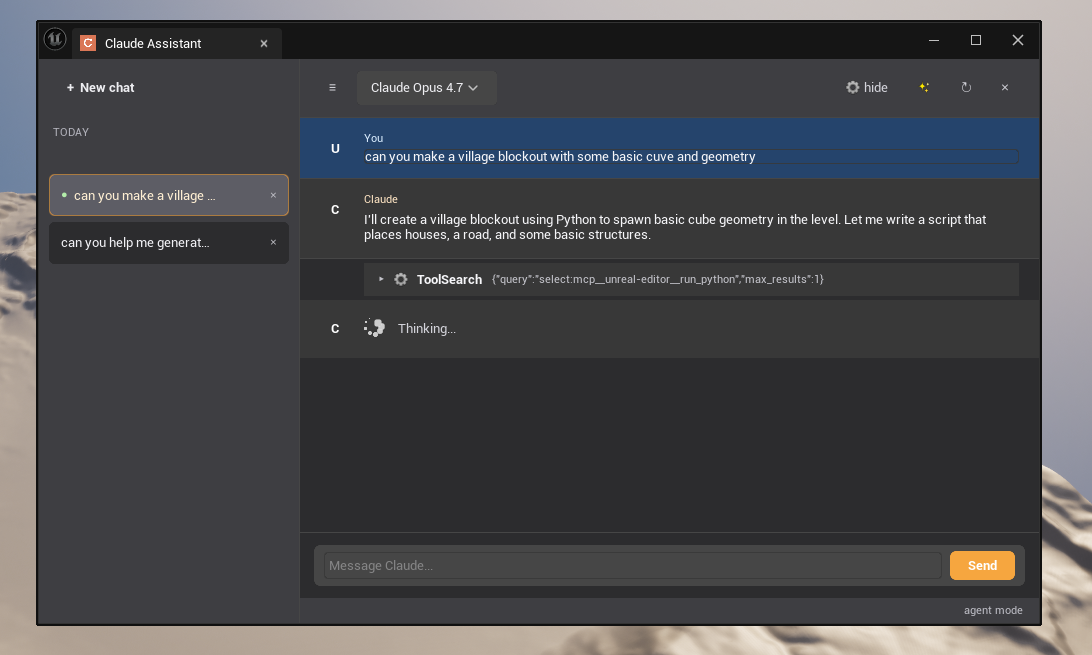
Layout
Toolbar (top)
| Element | Description |
|---|---|
| Model selector | Dropdown to switch between Opus 4.7, Sonnet 4.6, and Haiku 4.5 |
| Status label | Shows current state: Connected, Idle, Sending…, or an error message |
| Send button | Submit the current message |
| Restart button | Restart the Claude subprocess (Claude Code mode only) |
| Tool cards toggle | Show/hide the tool call cards in the conversation |
| Sidebar toggle | Show/hide the conversation sidebar |
Left sidebar
The sidebar lists all saved conversations.
- Click any conversation to switch to it
- Click + New chat to start a fresh conversation
- Conversations are sorted by last activity
Conversation area (center)
Messages appear as colored cards:
| Color | Meaning |
|---|---|
| Blue | Your message |
| Orange/warm | Claude's response |
| Red | Error message |
In Claude Code mode, responses stream in real time — you see each word as it arrives.
Tool cards appear inline when Claude calls a tool. Click a tool card to expand the full JSON arguments.
Active asset chip
A small chip at the bottom of the conversation area shows which asset Claude currently has context on (e.g., Blueprint: BP_Character). This updates automatically as you switch editor tabs.
Input area (bottom)
- Multi-line text editor
- Enter — send message
- Shift+Enter — insert a new line
Footer
Shows token usage for the last turn: input tokens, output tokens, and estimated cost (USD). Cache tokens (read/create) are shown separately when prompt caching is active.
Token cost display
The footer updates after each Claude response. Costs are estimates based on Anthropic's published pricing and may not reflect final billing.
If you close the chat panel but keep working, any in-progress response continues in the background. Reopen the panel to see the completed response.